Claude Code Notes & Workflow
Today I moved my Claude Code notes & Workflow notes to this blog entry so that it can be located easier! In this post we’ll walk through all the important Claude Code commands, workflows, tools, tips, and productivity notes you need to get the most out of your AI coding assistant environment.
Getting Started with Claude Code
Initializing Claude Code
- Use the
/initcommand to analyze your codebase at a high level and generate aCLAUDE.mdfile. This gives Claude Code high-level context for how to work with the project long-term. - Great for establishing baseline context, project objectives, test + lint preferences, and long-term memory.

Claud Code Productivity Shortcuts
Terminal Shortcuts
- Alias for quick use:
alias ccc="claude --dangerously-skip-permissions" - Use
claude --resumeto continue your previous session without losing context. - Within Claude Code, start the plan mode before writing actual code by pressing Shift + Tab (twice).
- You can run shell commands using
!inside Claude Code.
Screenshots & MCP (Multi-Context Processors)
Claude can use screenshots:
- Take a screenshot and give it to Claude.
- Or use MCP Server so Claude captures screenshots automatically:
claude mcp add playwright npc @playwright/mcp@latest /mcp
Note: MCP increases context usage and latency because:
- Tool definitions fill up the context window.
- Intermediate results consume extra tokens.
Session & Context Management
Managing Context Window
- Use
/contextto check how much of the context window is used. - If you hit ~60% usage, trim or reset context for efficiency.
- For complex reasoning, prompt Claude Code to “think” or “think a lot” to allocate more tokens for deep analysis.
Rewinding / Undo
- Press
ESC ESCor use/rewindto revert to earlier states of the code or conversation.
Permissions & Settings
- Manage allow/deny permissions via:
.claude/settings.local.json/permissionscommand inside Claude
- If you face “API Error: Claude’s response exceeded the 32000 output token maximum”, just update ~/.claude/settings.json to double the output (and support ultrathink) as follows:
{
  "env": {
    "CLAUDE_CODE_MAX_OUTPUT_TOKENS": "64000",
    "MAX_THINKING_TOKENS": "31999"
  }
}
Custom Commands
Claude Code allows you to create custom commands:
How to Create Them
- Inside your project directory:
.claude/commands/ - Add markdown files with your command names (ex:
implement-feature.md) - Pass arguments with
$ARGUMENTSin command content - Restart Claude to load new commands
For global commands, use: ~/.claude/commands
As of release of CC 2.1.3: The internal tools were merged, not the folder structure. The
SlashCommandtool was absorbed into theSkilltool. Your.claude/commands/and.claude/skills/folders still work exactly as before.
Multi-Session & Git Workflows
To avoid file conflicts when using multiple Claude sessions:
- Use
git worktrees - Create separate worktrees in a
.treesfolder:git worktree add .trees/ui_features git worktree add .trees/testing_features - Open a terminal + Claude session per worktree
- Afterward, merge worktrees back on
mainusing Git
Claude Code Integration with GitHub
You can use GitHub Actions with Claude Apps:
- Install via:
/install-github-app - Two authentication methods:
- API Key (anthropic_api_key) — charges based on API usage
- OAuth (claude_code_oauth_token) — uses Claude Pro/Max credentials
Agents & Plugins
Agents
- Create reusable agents using
/agents - Store agents locally under:
.claude/agents/your-agent-name.md
Skills & Plugins
- Install plugins using:
/plugins - For Agent skill, refer to the CC docs: https://code.claude.com/docs/en/skills
- For Examples: I often install the following skills and plugins:
claude plugin install frontend-design
claude plugin install code-review
claude plugin install typescript-lsp
claude plugin install plugin-dev
claude plugin install ralph-loop
claude plugin marketplace add jarrodwatts/claude-hud
claude plugin install claude-hud@claude-hud
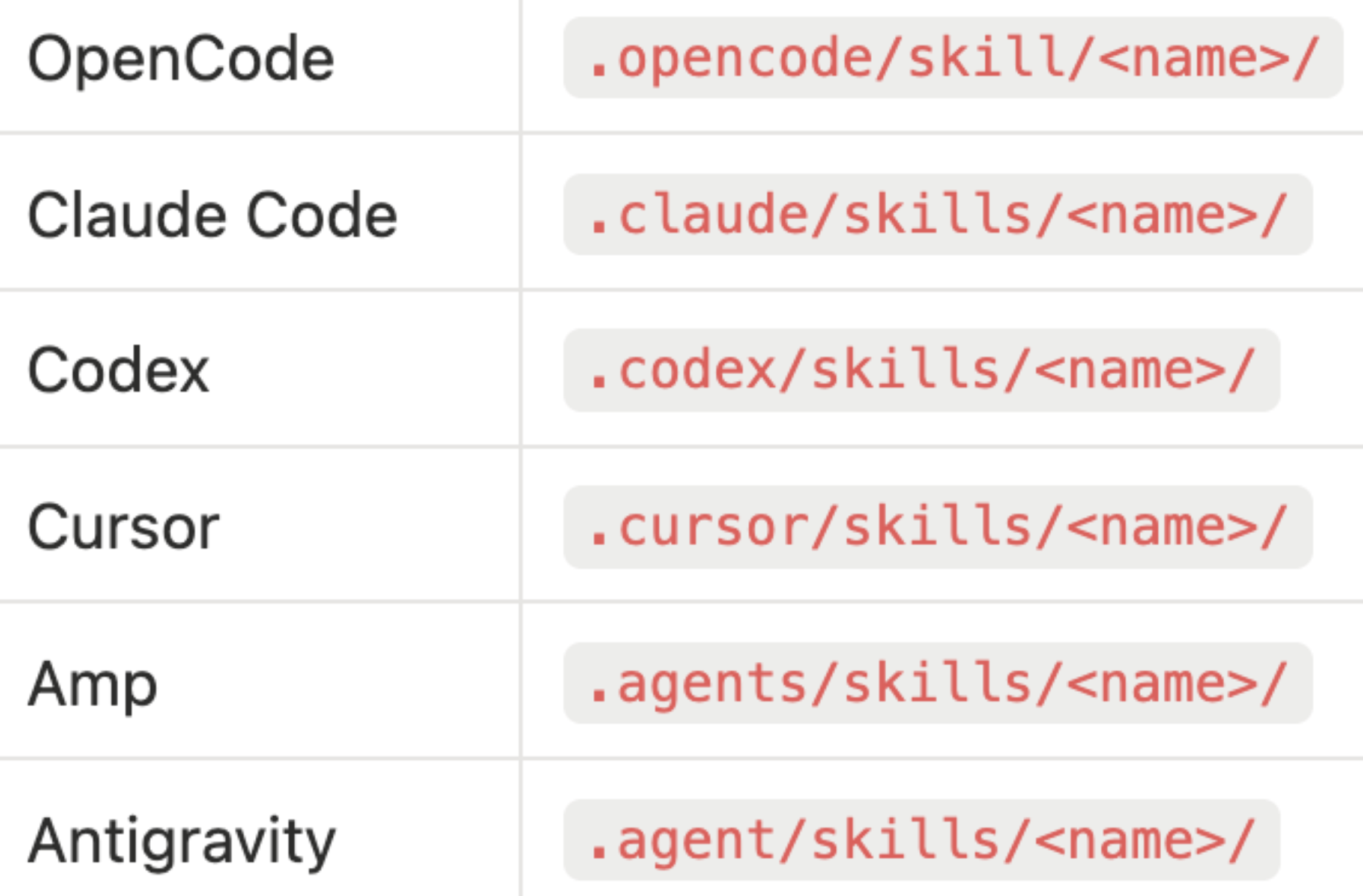
And as skills are widely adopted by many coding tools recently, we will need to remember the correct (messy) path of them …
Context Stability & Prompting Strategy
To prevent your sessions from degrading:
- Create a
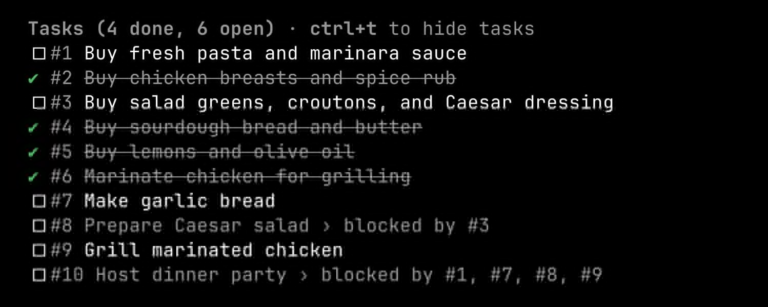
todo.mdto track task progress - Use recitation and attention cues like “Plan” and “Think” before writing large blocks of code
- Plan first (Shift + Tab twice), then ask Claude Code to think deeply
Tips for Smooth Claude Code Use
- Clear conversation history regularly with /clear
- Use Ctrl + R to search through prompt history
- Rewind or restore as needed