VSCode Workspace – Manage multiple related Projects effectively
If you need to work on several different projects at the same time, especially when working with cross-project integration, managing the same project within a same workspace will be the time-effective practice. In this post, I will note some practices when working with VSCode Workspace, how to manage multiple projects effectively. Of course we can apply the same practice to other VSCode forks like Cursor IDE, Google Antigravity, etc.
Assume that we need to create an integration / bridge between 2 existing projects in different root folders. The following notes highlight some steps that we need to do in VSCode workspace. Be noted that we can use different approach like git submodule, but this post is targeting VSCode workspace users 😀
Use Multi-root VSCode Workspace
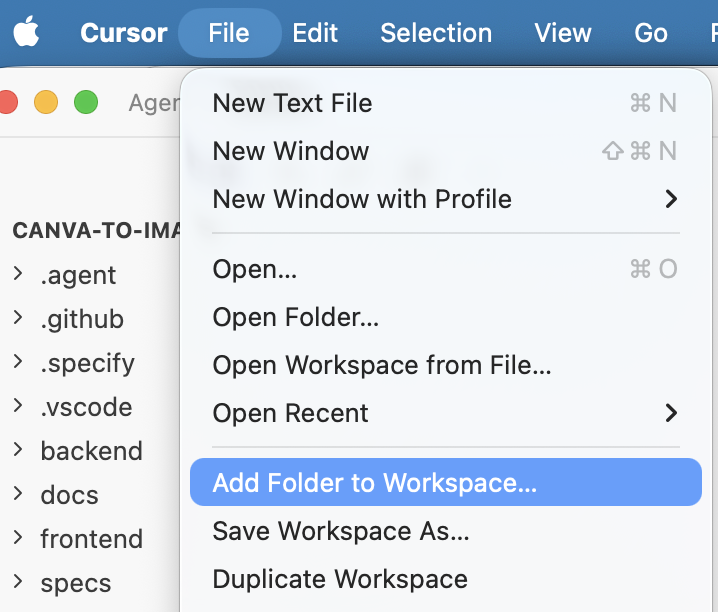
- First, open a project root, and then add another project by File → Add Folder to Workspace…
- Then, save it: File → Save Workspace As…
So after adding all projects to a workspace, we can search / replace among all of them, as well as can do many Tasks/Terminals for each of them as managing in separated projects.
Adjusting Project Name / Docker Ports (optional)
As we are going to work across projects, we do not want to have any unnecessary conflicts. So in case these projects are using dockers or running in the same ports, remember to adjust them so that all these projects can start simultaneously.
For me, as I prefer everything should be in docker containers, I normally use docker-compose.yml to pack projects’ containers. When I want to start them all at the same time, I need to adjust some port mapping to avoid starting up conflicts.
Utilizing VSCode Tasks
To avoid opening terminal in different projects to run repeated tasks like starting up, rebuilding, etc., we can utilize .vscode/tasks.json to define and run different tasks among projects. For me, I am too lazy to go to each folder to start docker-compose environment for all projects, so I define different tasks for each project, and also some tasks for both projects such as starting docker-compose for all projects, shutting down them, etc.
So I have some tasks as follows:
– Project 1 – Docker Compose up
– Project 2 – Docker Compose up
– BOTH – Docker Compose up

As above, I have a task called BOTH – Docker Compose up as follows so I can start both projects at the same time.
		{
			"label": "BOTH - Docker Compose Up",
			"type": "shell",
			"command": "docker-compose up -d && cd ../../project-2 && docker-compose up -d",
			"isBackground": false,
			"problemMatcher": [],
			"group": "start"
		}
So ater defining tasks (Can do by Cmd – Shift – P → Tasks: Configure Task), later on we can easily run them by accessing Run Task: Cmd – Shift – P → Tasks: Run Task

That’s all. Happy coding!